

Interactive dashboards are vital tools for delivering insights, but slow performance can undermine their value and be detrimental to the user’s experience. For developers, it’s especially frustrating to invest time building a dashboard, only to hear users complain about sluggish load times. Fortunately, Tableau Desktop includes a built-in tool designed to help identify and resolve performance bottlenecks: the Workbook Optimizer.
What Is the Workbook Optimizer?
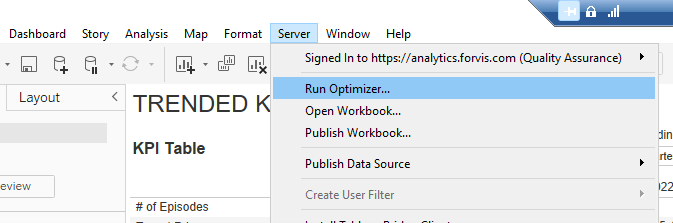
The Workbook Optimizer is an automated diagnostic tool that evaluates your Tableau workbook against a set of performance best practices. Accessible from the Server menu in Tableau Desktop via Run Optimizer, the tool provides quick insights into design elements that may slow down your dashboard.
Understanding Optimizer Results
Once executed, the Optimizer categorizes findings as follows:
- Take Action – Issues that should be addressed immediately. These items should be remedied in your workbook.
- Needs Review – Potential concerns that may warrant further evaluation. These items may not necessarily cause performance issues depending on their magnitude but are worth reviewing. Each dashboard and use case is unique, so items in this category are subject to business needs.
- Passed – Items that conform to best practices.
Expanding each category reveals specific workbook elements, descriptions of the issues, and recommended remediations.
Commonly Flagged Issues
The Optimizer highlights many items that could impact performance, which may include:
- Too Many Data Sources: While there’s no strict limit on how many you can have, decreasing the number of data sources in a workbook reduces Tableau’s processing overhead and helps improve load times. Consider joining or unioning data sets whenever possible to cut down on the number of data sources in a workbook.
- Too Many Views: Tableau recommends limiting dashboards to no more than 10 views. This improves rendering speed and helps ensure responsive filtering.
- Unused Fields: Fields not used in visualizations or calculations add unnecessary bulk to the extract and workbook. Hiding or removing these fields helps streamline performance. Proper data cleansing prior to bringing data into Tableau will also help to reduce unused fields.
- Nested Calculations: Calculated fields that reference other calculated fields introduce additional levels of complexity. See Non-Materialized Calculations below.
- Unused Data Sources: Unused connections still consume resources. Removing them reduces workbook size and helps improve overall efficiency.
- Non-Materialized Calculations: Calculations created after data extraction are executed in real time, slowing user interactions. Moving these into the data extract can significantly enhance performance.
Where Do Calculated Fields Reside?
Understanding where your calculations live is critical. Calculated fields created before data is extracted are embedded in the extract and pre-computed, helping provide faster performance. In contrast, calculations created after the data is extracted reside in the workbook and are computed during user interaction.
To verify a calculation’s location, open the workbook in Tableau desktop:
- Right-click the field in question and select Edit. If the option is “Edit,” it lives in the workbook.
- If it shows “Edit Copy,” the field is embedded in the data source or extract and cannot be modified directly.
Conclusion
Implementing the recommendations from Tableau’s Workbook Optimizer can help improve dashboard responsiveness to keep your developments aligned with best practices. For teams looking to deliver high-performing analytics solutions, incorporating this tool into your development workflow is a simple yet powerful step forward.
Need Help With Optimization?
The Analytics team at Forvis Mazars provides tailored solutions to help enhance the performance, scalability, and maintainability of your digital products. For more on what Forvis Mazars has to offer, visit our website, and connect with one of our professionals today.