

Many organizations using Dynamics GP are in the process of migrating to new accounting systems due to the GP sunset date in 2029. One key to a successful migration is good data.
General Ledger is part of most migrations. Organizations may have more data than they need in their new accounting system when migrating General Ledger data. While there are strategies for handling the archival of that data, this article will focus on how to handle the data and smooth out migration steps.
Accounts
Dynamics GP users are familiar with using account strings. An account string will usually have two or more segments, like 000-1402-00. Most new systems use a combination of an account dimension and other operating dimensions, like division and location. Thus, the user will enter data into three columns (Account, Division, and Location) instead of entering the account string in one field.
In the simplest situation, you will translate each segment into the appropriate dimension in the new system. For example, using the above string, the data would go into these columns:
| Account | Division | Department |
|---|---|---|
| 1402 | 000 | 00 |
Many GP systems do not have descriptions for the division and department segments. If they do, they are found in the Segment Definitions Master table. If the descriptions are not in GP, you can export the accounts to Microsoft Excel using the Accounts SmartList and create sheets for each set of unique segment values along with their descriptions. See the section Account Master section below for more details.
In some situations, there is a desired change of accounts and segments to what they will be in a new system. To handle this change, users can create a cross-reference table by exporting the GL accounts using SmartList. To that spreadsheet, add columns for the BC dimensions, like this example:
| Account Number | Account Description | Account | Division | Department |
|---|---|---|---|---|
| 000-1402-00 | Prepaid Expenses | 1500 | CORP | - |
| 700-6100-10 | Office Expenses | 6250 | WEST | SALES |
This table can be stored in a database or Excel, depending on the size of the data. In a recent situation, a client had over two million rows, making Excel a bad choice. The team from Forvis Mazars utilized the Solver data warehouse to store this client’s data for a simpler option.
Account Master
For the account master data, you will want to export the columns required by your new system. Common columns are:
- Account Number
- Account Description
- Posting Type
- Account Type
- Account Category
You can use the above table and add other columns to identify the source information and the destination information. For example, with Business Central, you will have columns for Account Type, Account Category, and Account Subcategory. Your final table may have many columns. When working with a consultant from our team, that individual can assist with providing a template for the new system.
A potential obstacle in this scenario is that a user will export accounts and delete the ones that won’t be used moving forward. Because of these deletions, one or more accounts used in the transaction history are missing.
To avoid the issue of missing accounts, use a query to find the accounts used in the periods of General Ledger history that you are going to migrate. If you’re going to migrate data for the years 2024 to 2026, you can use a query to find the used accounts. Here is an example of a query:
select distinct [Account Number], [Account Description from Account Master], [Posting Type], [Account Category Number], [Account Type from Account Master] From AccountTransactions Where [TRX Date] between '2024-01-01' and '2026-05-31' and [Source Document] Not in ('BBF','P/L') Order by [Account Number]
A list of account numbers will result from this query, and that list can help you determine which accounts need to be translated into the new system (sans missing accounts).
You can get the segments from the Segment Definition Master table, GL40200.
select SGMTNUMB, SGMNTID, DSCRIPTN from GL40200 Where SGMTNUMB = 1 and SEGCOUNT <> 0
Union All
select SGMTNUMB, SGMNTID, DSCRIPTN from GL40200 Where SGMTNUMB = 3 and SEGCOUNT <> 0
The above query pulls segments one and three, division and location, and puts them into a table. Based on preference, the user can also choose to run each query separately and then copy and paste the results to separate Excel sheets.
General Ledger History
Now that accounts and dimensions are settled, it’s time to tackle the transactions.
With a table (similar to the above), the General Ledger history can be translated into new dimensions by looking up the GP account number and matching it to the new dimensions. This is the easy part.
If you have more data than Excel can (or should) handle, then a database or data warehouse may be the best option to use. Several of our clients use Solver’s Data Warehouse. We offer many webinars and informative articles to help you understand Solver.
Once you have decided on a place to store your raw data, you will have tables for the history and dimensions. You can combine GL history, which has the account string, with the cross-reference table, which also has the account string plus the new dimensions, to create a full picture of how the GL history will be translated to the new system’s format.
Users can utilize this combined information to send data to the new accounting system. If a user has too much data for Excel, then the data can be broken into years as an option. In addition, a user can work with a tool, such as SmartConnect, to import the data.
Accounting systems may have their preferences for how data is imported. In this case, SmartConnect may be used to pull the data from Solver using Solver’s Data API and push it directly into a new system, like Business Central.
Solver Migration Mapper
As an award-winning partner of Solver Global, Forvis Mazars can help your organization use Solver for data migration and data archiving. One option Solver users have is the Solver Migration Mapper. This option is a set of pre-built processes and tables that enable users to pull in the old data, translate it to the new format, and then have GL data in both the old and new formats. This functionality can help formalize the process for users.
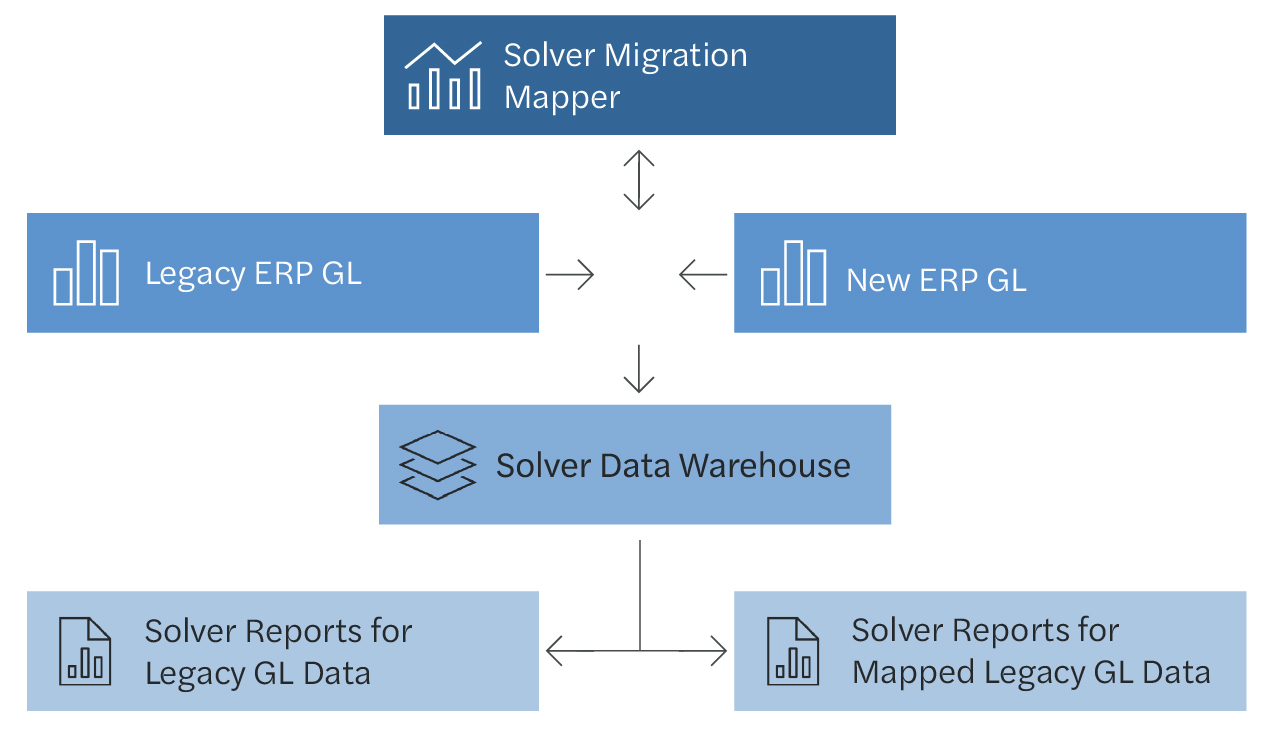
Figure 1 Solver Migration Mapper
Source: Solver
How Forvis Mazars Can Help
Whether using a pre-built solution, like Solver Migration Mapper, or utilizing a set of tables and processes created for your situation, it is helpful to make a migration as easy as possible. The steps outlined above for accounts and GL history may help facilitate a successful data migration. In turn, a successful migration can help users run comparative and historical reports to know what data is necessary for use.
If your organization is still using Dynamics GP, now is the time to prepare for what’s next. Forvis Mazars can help you assess your current GP environment, identify data migration priorities, and develop a practical road map for moving forward.
To learn more, sign up for a complimentary GP assessment or explore our related resources for GP users considering Business Central.